Account and Organization Switching
Account page
Section titled “Account page”The Account page includes:
- Email and user ID
- Admin access indicator
- Active organization summary
- Organization membership list
Use it as a quick identity and context check before running events.
Screenshot: Account profile
Section titled “Screenshot: Account profile”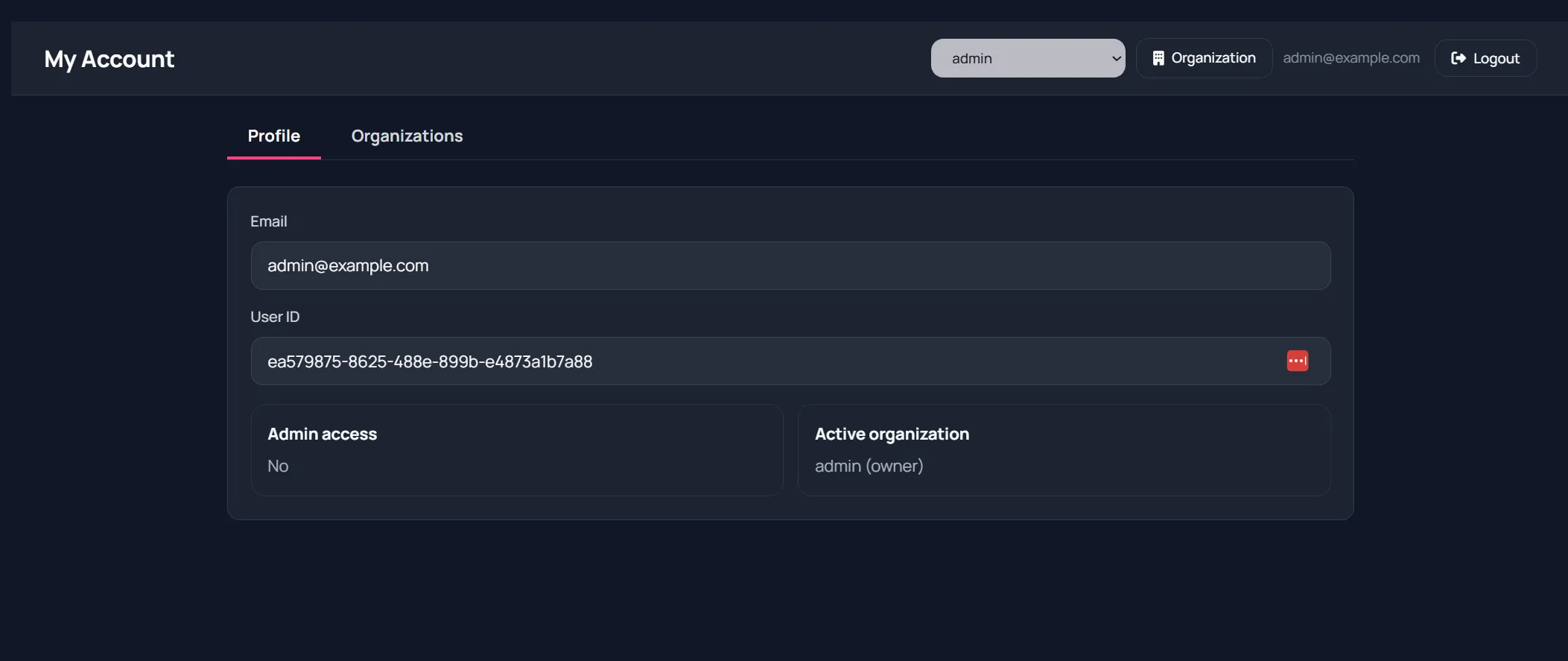
Organization switcher
Section titled “Organization switcher”The header org dropdown controls which organization receives:
- New polls/quizzes/forms/etc.
- Resource updates
- Plan and role permissions
Switching org updates subsequent API requests to that org.
Best practice
Section titled “Best practice”Before creating content for an event:
- Open Account.
- Verify active org name and your role.
- Switch org in header if needed.
- Return to launcher and start building.
Organization memberships
Section titled “Organization memberships”In Account > Organizations, you can view:
- Each org you belong to
- Your role in that org
- Shortcut to organization settings
Screenshot: Organization memberships in account
Section titled “Screenshot: Organization memberships in account”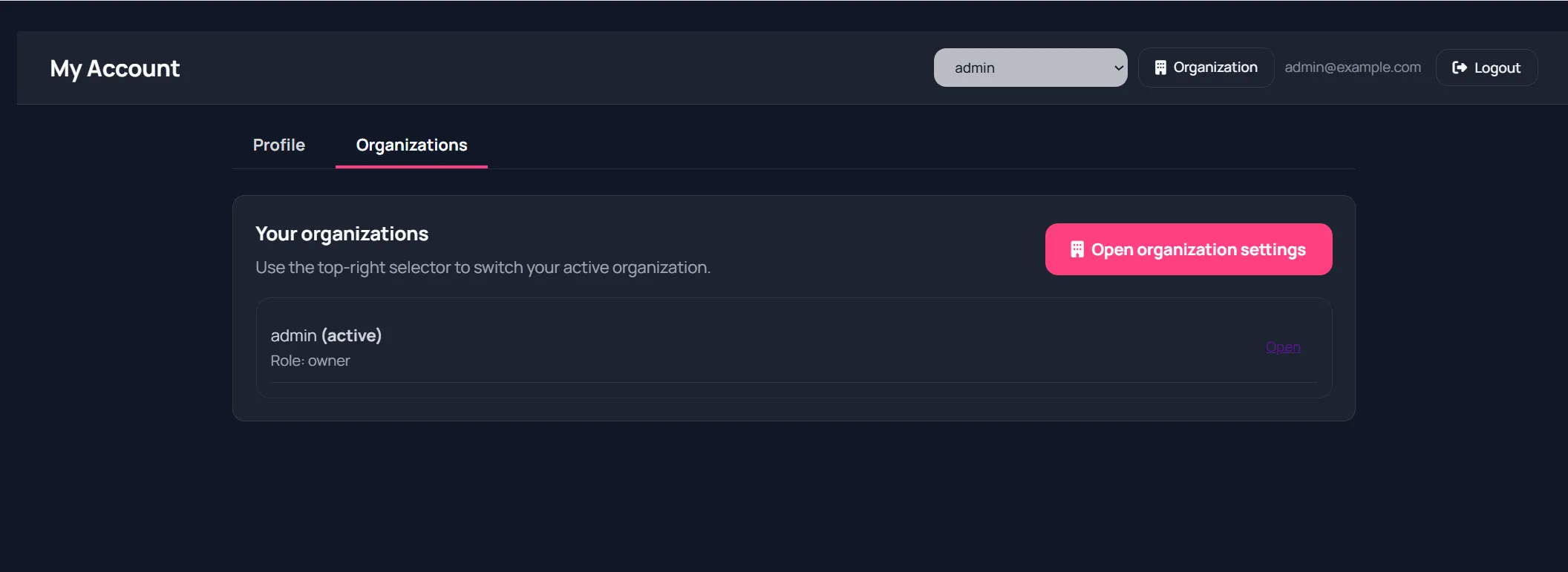
If you do not see expected resources
Section titled “If you do not see expected resources”Usually you are in another org context.
Fix:
- Change org from header switcher.
- Reload the list page.
- Confirm the item exists in that org.