Sign In and Access
Sign in flow
Section titled “Sign in flow”- Open the public start page and select Login / Sign Up.
- You are redirected to MentorLogin. You can login by using your email (Magic link) or Github account
- After successful authentication, you return to the admin launcher.
The app stores your session token locally in your browser so you can navigate between tools without re-authenticating on every page.
Screenshot: MentorLogin options
Section titled “Screenshot: MentorLogin options”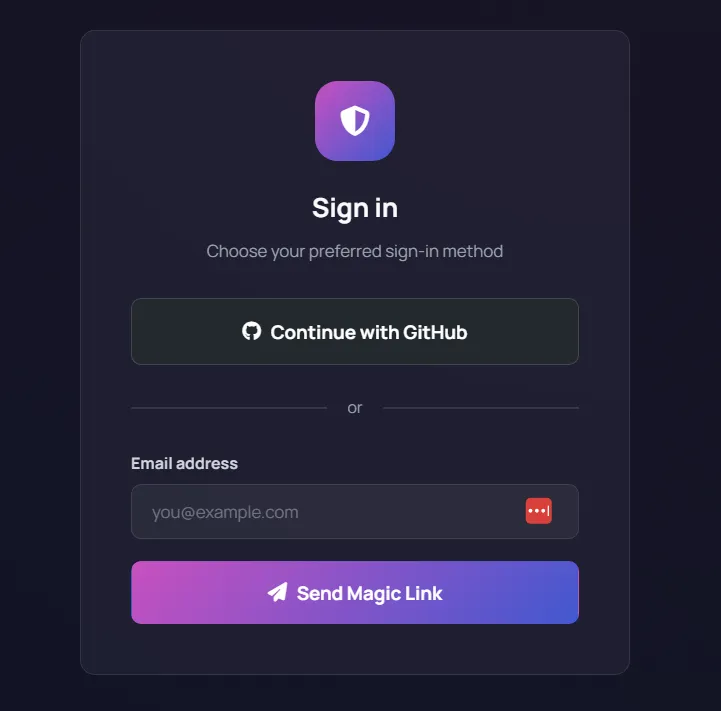
What happens after login
Section titled “What happens after login”After login, the launcher shows:
- Organization switcher (if you belong to multiple organizations)
- Feature cards (Live Polls, SparkQuiz, Wheels, Forms, Break Countdowns, Collective Voting, Sessions, Whiteboard, Slides)
- Account and Organization pages
- Admin-only actions for users with admin permissions
Screenshot: Feature launcher after login
Section titled “Screenshot: Feature launcher after login”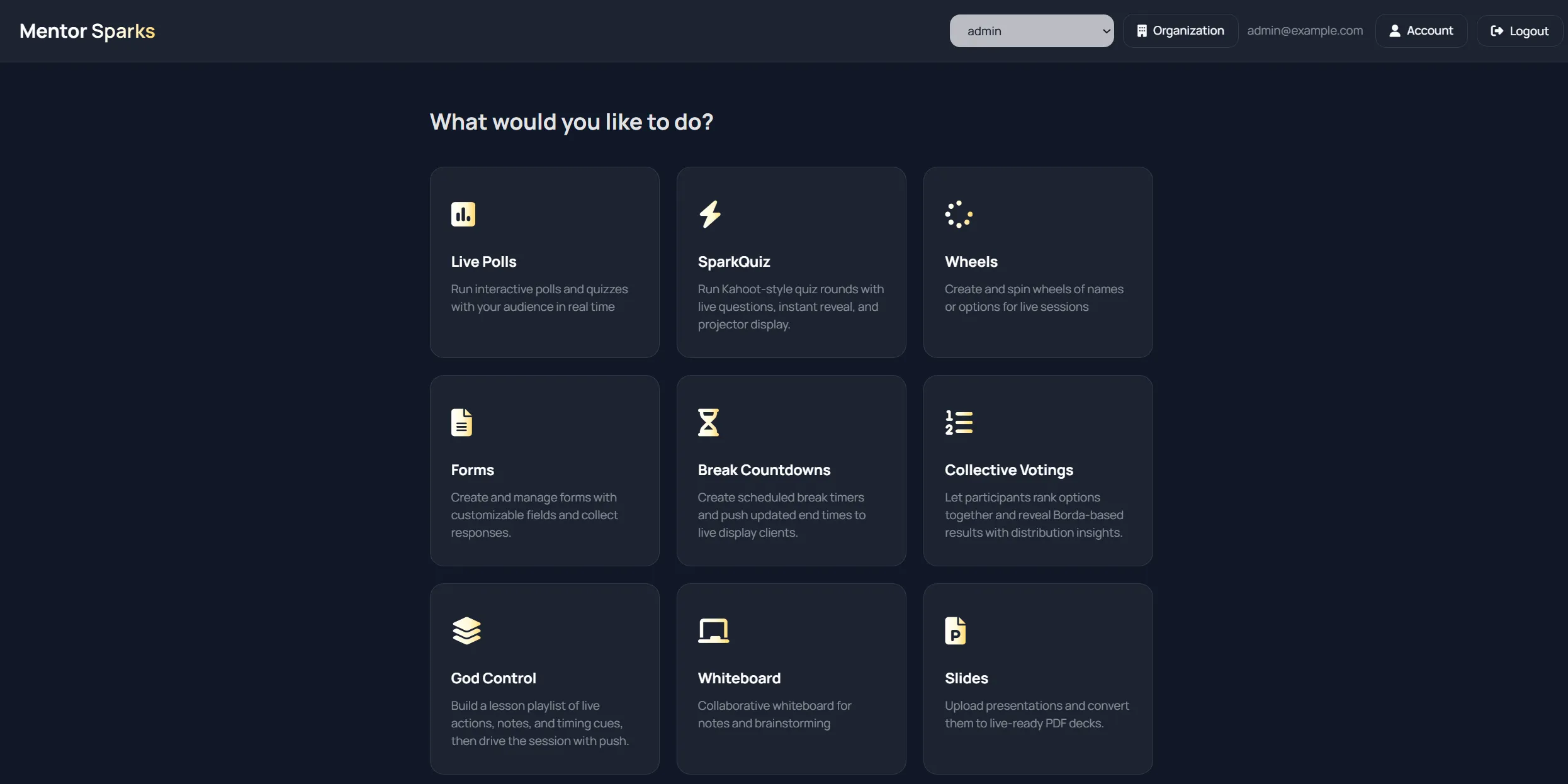
Invite links and organization join
Section titled “Invite links and organization join”If you open an organization invite link, the app accepts the invite during login and activates that organization context automatically.
Logout behavior
Section titled “Logout behavior”When you log out:
- Session data is cleared from local storage
- You are redirected back to the public home page
- Re-opening admin pages requires sign-in again
Access troubleshooting
Section titled “Access troubleshooting”Infinite redirect to login
Section titled “Infinite redirect to login”Usually means the token is missing or expired.
Fix:
- Return to the home page.
- Start login again.
- If needed, clear browser storage for the site and retry.
You logged in but still cannot open a feature page
Section titled “You logged in but still cannot open a feature page”Possible causes:
- You are in the wrong organization context.
- Your role does not allow that action.
- Your plan limits are reached and backend rejects creation.
Fix:
- Switch org from header dropdown.
- Verify role in Organization page.
- Check plan state in Organization overview.